
If you answered anything other than “Yes,” read on. If you answered “No,” that’s something other than “Yes” so please read on. Come on, keep up.
Amazon Smile is a program where 0.5% of each eligible purchase you make on Amazon is donated to the charity of your choice. It doesn’t cost you anything. Literally nothing. Prices aren’t higher because of this. If you’re a Prime member you still get free 2-day shipping. The ONLY reason not to use this service is if you’re a terrible, hate-filled shell of a human being. Seriously. If you don’t do this because you’re lazy, I get it. That makes sense to me. I have a solution for you down below. If you don’t do it because you don’t care, then SHAME!

Seriously though, I know you’re going to take advantage of this wonderful feature. Read on…
This is super complicated, so you might want to take notes. You know how when you shop online at Amazon you go to Amazon.com? Instead of doing that, now you’re going to type “smile.amazon.com” into your web browser. That’s basically it. The first time they’ll ask you what charity you want to support. There, that’s it. I’m not joking. After you do this, nearly everything you buy will go to support the charity you chose. Going forward Amazon will tell you exactly how much money you’ve sent to the charity. It’s awesome.
Here’s the one challenge you’re going to run into, but don’t worry, I have a solution for you as well. Anytime you google a product or something sends you to amazon, it’s going to send you to the regular site. YOU, being “woke”, as the kids say, want to go to smile.amazon.com. Fortunately, a computer genius made a chrome extension which will automatically redirect you! WHAT? THAT’S CRAZY! I know, but it’s try nonetheless. Computer geniuses are awesome. It’s called “Smile Always.”

I assume you know what a Chrome extension is, just as I assume you’re browsing the internet by using Chrome. If not, you’re somebody else’s problem. No, I shouldn’t be a negative nancy. I’m fairly sure that Firefox has a similar extension you can download.
If you’re using Chrome, click any of the “Smile Always” links peppered throughout this post (there are two, I guess that’s not a lot of pepper). It will take you to the chrome store where you can download the extension. Once installed you’ll see a little box with “SA” to the right of you search bar. It just rides along in the background. Anytime anything tries to take you to Amazon.com, it redirects you to Smile.Amazon.com. It’s totally seamless and effortless.

It’s been a while since I set this up and I’m pretty sure I’m remembering this part correctly. I THINK when you choose the charity they offer you a list of 4 or 5 to choose from. You can actually type whatever charity you want into a box and if it’s available you’re good to go! I am currently donating to “The Barking Lot,” the shelter where we rescued our pup, Cody. If you can’t think of someplace you want to support, I recommend them! They rescue dogs from high-kill shelters, the streets of Tijuana, and the dog meat trade in Asia. Seriously, they’re awesome.
Okay, so now you’ve been properly introduced to Smile.Amazon.com you can shop and justify it by saying you’re donating money to charity! Hooray for everyone!
As always, you’re welcome. 🙂
Living the Dream,
Humble Dave



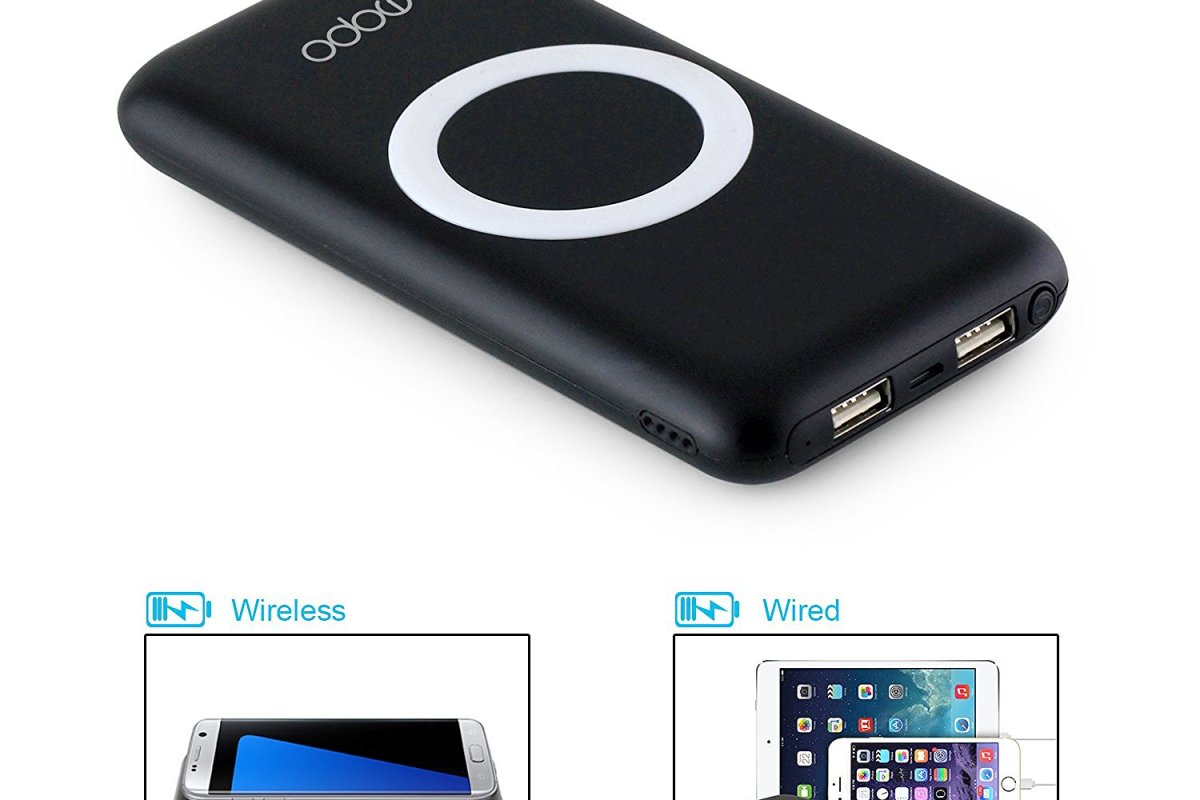
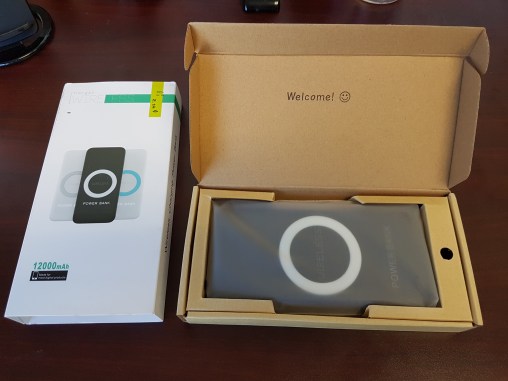

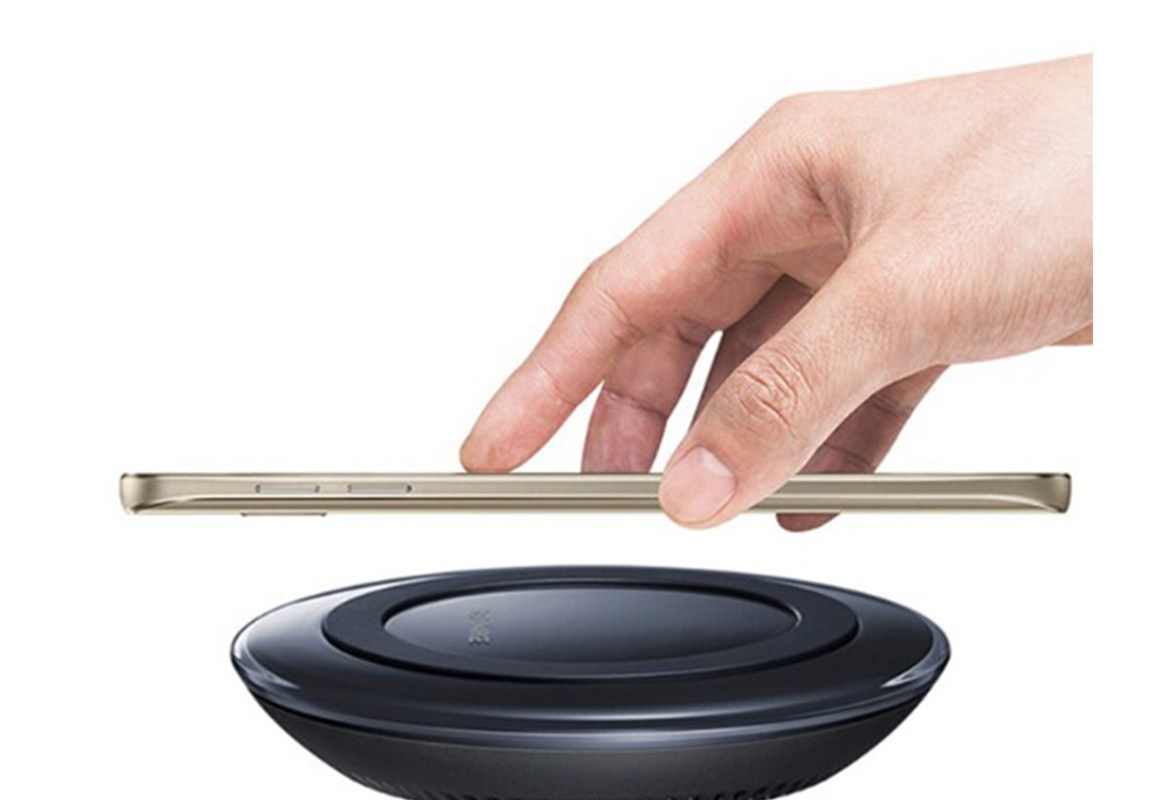
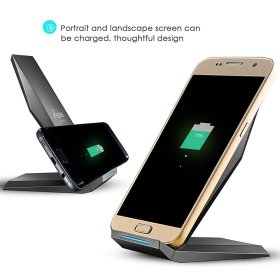 the strength of the charger it may even charge directly through your case (as long as it isn’t one of those crazy extra thick otterbox cases!). Here’s how it works: You plug the charger into the wall using any 2 amp wall charger. Then you put your phone down on the charger. Hooray, it’s charging!


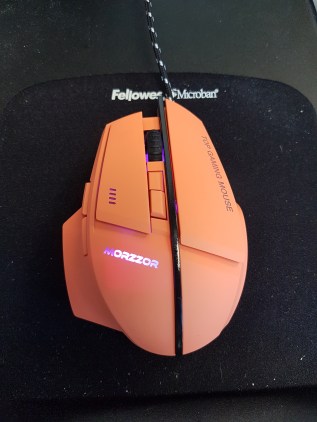 left/right click buttons. Cool. A mouse missing those is not a mouse. It also has your often-standard scroll wheel which is also a button. You know what that does. It scrolls and scroll-locks. “But Dave, what are the two other buttons in the middle?” I’ll tell you. The uppermost button is a triple click. For gaming you can use it to fire multiple shots. At work (and yes, I use this at work. More on this later) I use it to conveniently open files I’d normally double-click. Why? Because I can. The bottom-middle button controls sensitivity. How fast does the cursor move when you move the mouse (really it’s dots/inch, but it amounts to the same thing). There are 4 settings from “slow and steady” to “fast and furious”. I generally keep it on the second slowest. I call that “nice and smooth.” The two buttons on the side, you ask? Forward and backward. I’m not going to lie, they take a bit of getting used to. But it’s all about convenience, isn’t it? No more clicking the back button in Chrome because I’ve got it right on my mouse. BOOM.
 Humble Dave